How to Use MetaTrader 4 (MT4): A Beginner's Guide
MetaTrader 4 (MT4) is a trading platform developed by MetaQuotes and offered by many forex brokers; it is used to follow prices, analyse charts, place orders and run automated trading programs called Expert Advisors. You download it from your broker or from MetaQuotes and log in with the account number, password and server name your broker provides. MT4 is software; it says nothing about whether a broker is regulated.
Key takeaways
- MT4 is a trading platform developed by MetaQuotes; your account and money are held by the broker, not by the platform.
- The platform is downloaded from the broker or from the official MetaQuotes download page; you log in with the account number, password and server name from the broker.
- MT4 supports market Buy and Sell orders plus four pending order types, and has 9 timeframes and 30 built-in technical indicators.
- In MT4 the trailing stop runs in the desktop platform, not on the server: it stops moving while the platform is closed or offline, and the mobile apps do not offer it.
- A broker offering MT4 is not evidence that the broker is regulated or reliable.
At a glance
- Developer
- MetaQuotes
- Timeframes
- 9 (Oct 2026)
- Built-in indicators
- 30 (Oct 2026)
- Pending order types
- 4 (Oct 2026)
What can you do with MetaTrader 4?
MetaTrader 4 (MT4) is a trading platform developed by the software company MetaQuotes. Brokers connect it to their own servers and offer it to their clients. With MT4 you can:
- follow live prices,
- analyse markets with charts and indicators,
- place market and pending orders, and add stop losses and take profits,
- see your open positions, margin and account history,
- run automated trading programs called Expert Advisors (EAs).
MT4 is only software: your account and your money are held by the broker, not by the platform. A firm offering MT4 is not evidence that it is regulated or reliable; when choosing a broker, its regulatory status is the first thing to check.
How do you download and install MT4?
- Download: get the platform from your broker’s website or from MetaQuotes’ official MT4 download page; the mobile apps are on the App Store and Google Play. Installers from unofficial sites may contain malware.
- Choose a version: MT4 has a desktop version and mobile apps for iOS and Android, and the same broker account can usually be used across the supported desktop and mobile versions. On macOS and Linux, use depends on the installation method. Some brokers also offer a version that runs in the browser.
- Log in: use the account number, password and server name from your broker. The server name decides which broker and which account type (demo or live) the platform connects to.
- Demo account: a demo account can be used to learn the platform without risking real money: forex demo account.
What are the main MT4 windows?
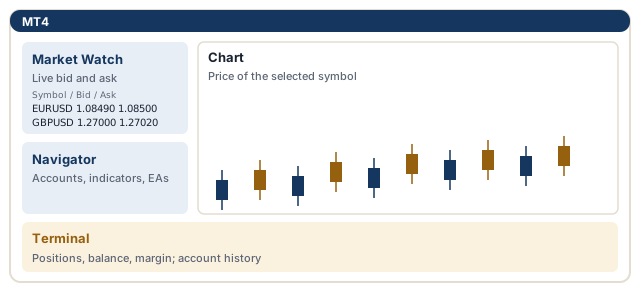
| Window | What it shows |
|---|---|
| Market Watch | Live bid and ask prices of the symbols |
| Navigator | Accounts, indicators, Expert Advisors and scripts |
| Chart | The price chart of the selected symbol |
| Terminal | Open positions, balance, equity and margin (Trade tab); closed trades (Account History tab) |
What balance, equity, margin and margin level mean in the Terminal window: what is margin in forex.
What do bid and ask mean in MT4?
Market Watch shows two prices for each symbol. The bid is the price you can sell at and the ask the price you can buy at. In MT4, Buy orders open at the ask and Sell orders open at the bid, and charts are drawn from the bid by default: bid and ask price.
How do you open a trade in MT4?
- Double-click a symbol in Market Watch or press F9 to open the New Order window.
- Choose the symbol in the Symbol field.
- Enter the position size in lots in the Volume field: what is a lot in forex.
- Optionally enter Stop Loss and Take Profit levels.
- Choose the market order in the Type field and click Buy or Sell.
MT4 trade example: EUR/USD buy
Buying 0.10 lots of EUR/USD in MT4
Assumptions: 0.10 lots of EUR/USD, USD account.
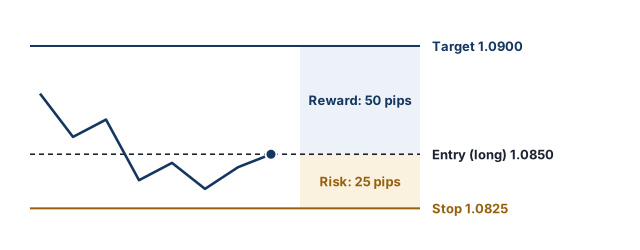
You want to buy 0.10 lots of EUR/USD. The ask, the price you can buy at, is 1.08500.
- Volume: 0.10
- Stop Loss: 1.08250 (25 pips below)
- Take Profit: 1.09000 (50 pips above)
- When you click Buy, the position opens at the current ask or, depending on the broker’s execution model and market conditions, a nearby price.
On 0.10 lots of EUR/USD on a USD account a pip is worth about $1, so the loss is about $25 if the stop is hit and the gain about $50 if the target is reached, before costs.
MT4 usually shows prices with five decimals, and its smallest price step is called a point. On five-decimal EUR/USD, 10 points equal 1 pip, which matters when entering stop distances: pip vs point.
What are the MT4 order execution modes?
MT4 has three order execution modes: instant, request and market execution. Which one applies depends on the broker and the account type.
- Instant execution: the order is filled at the price shown on screen if possible; if the price has changed, the broker can offer a new price, a requote.
- Request execution: a price is requested from the broker before the order is placed; if the quoted price is accepted within a short time, the trade opens at that price.
- Market execution: generally does not use requotes; the order is filled at the available market price and may slip in fast markets: slippage.
How do you place a pending order in MT4?
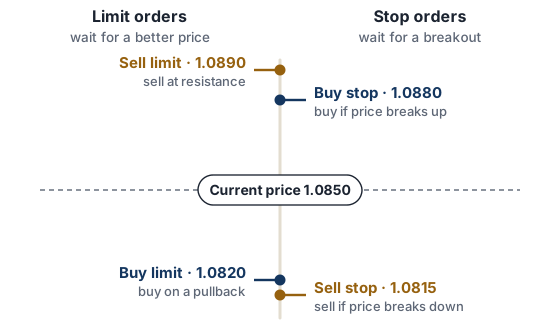
In the New Order window, choose Pending Order in the Type field, then the order type and price. MT4 has four types of pending orders:
| Order | Used to |
|---|---|
| Buy Limit | buy below the current price |
| Sell Limit | sell above the current price |
| Buy Stop | buy once the price rises above a level |
| Sell Stop | sell once the price falls below a level |
Order types with worked examples: forex order types.
How do you set stop loss and take profit in MT4?
To add or change a stop loss and take profit on an open position, right-click the position in the Trade tab of the Terminal window and choose Modify or Delete Order. Enter the levels and click Modify: stop loss, take profit.
How to use a trailing stop in MT4
In the desktop platform, right-click the position, open the Trailing Stop menu and choose a distance; the MT4 mobile apps do not offer trailing stops. The trailing stop moves the stop loss behind the price at a fixed distance as the trade moves in your favour: trailing stop.
Does the MT4 trailing stop work when the platform is closed?
No. In MT4 the trailing stop runs in the desktop platform on your computer, not on the broker’s server. While the platform is closed or offline the stop is not moved; the last stop level it reached is stored on the server and remains in force.
How do you use charts and indicators in MT4?
MT4 timeframes
MT4 has 9 timeframes: M1, M5, M15, M30 (minutes), H1, H4 (hours), D1 (day), W1 (week) and MN (month). The timeframe sets how much time each candle or bar on the chart represents.
MT4 chart types
MT4 offers three chart types: bar, candlestick and line. Indicator and colour settings can be saved as templates and applied to other charts.
What indicators does MT4 have?
According to MetaQuotes’ platform page (as of October 2026), MT4 includes 30 built-in technical indicators, such as moving averages, RSI, MACD, Bollinger Bands and the stochastic oscillator, and 23 analytical objects such as trend lines and Fibonacci tools. Indicators are added by dragging them from the Navigator window onto a chart; additional indicators can be written or installed in the MQL4 programming language. These figures can change with platform updates.
What is an Expert Advisor in MT4?
An Expert Advisor is a program written in MT4’s MQL4 language that can trade automatically according to its rules. An EA only follows the rules it is programmed with; past profitability does not guarantee future profitability. EAs sold with promises such as “guaranteed profits”, and offers to manage your account for you, may be warning signs of forex scams.
MT4 vs MT5: which should you use?
MetaTrader 5 (MT5), MetaQuotes’ newer platform, offers more timeframes, indicators and pending order types and uses a different programming language (MQL5). Being newer does not make MT5 automatically better for everyone; which one to use often depends on what your broker offers and what you need. A detailed comparison: MT4 vs MT5.
Free email course
Forex Risk Management in 5 Days
A free five-day email course: risk per trade, stop losses, position sizing, risk-reward and drawdowns, with a worked example each day.
Frequently asked questions
How do I place a stop loss in MT4?
Enter the stop loss level in the order window when opening the trade, or double-click the open position in the Trade tab (or right-click it and choose Modify or Delete Order) and set the level there. The stop can also be dragged on the chart.
How do I add an indicator in MT4?
Open the Navigator window, expand Indicators and drag the indicator onto the chart, or use Insert, Indicators from the menu. Its settings window opens before it is added.
What lot size is 0.01 in MT4?
A micro lot, 1,000 units of the base currency. On EUR/USD with a USD account one pip is worth about $0.10 at 0.01 lots: [what is a lot in forex](/wiki/what-is-a-lot-in-forex).
Is MT4 free?
Brokers usually provide the platform free of charge; the main costs are trading costs such as spreads, commissions and swaps, although some brokers charge for extras such as data feeds or hosting.
Can I use MT4 on my phone?
Yes. MT4 has iOS and Android apps, and the same broker account can usually be used on the desktop and mobile versions. Web access depends on what the broker offers.
How do I open an MT4 demo account?
Through the broker's website or from within the platform; see the forex demo account guide for what to look for.
Sources
- MetaTrader 4 Trading Platform, MetaQuotes
- MetaTrader 4 Orders, MetaQuotes
- Download MetaTrader 4, MetaQuotes
Related articles
- Forex Order Types: Market, Limit, Stop and More Explained
Forex order types explained: market order, buy limit vs buy stop, sell limit vs sell stop, stop-limit, stop loss, take profit, trailing stop, OCO and GTC.
- Forex Demo Account: What It Is and How to Use It Properly
What is a forex demo account? How demo trading works, how to use a demo account properly, demo vs live differences and when to move to a live account.
- What Is a Pip in Forex? Meaning, Pip Value & Examples
What is a pip in forex? Pip meaning, how to count pips, pip value per lot, pips on JPY pairs, pipettes and pip vs point, with worked examples.
- Stop Loss in Forex: How to Set One and Where to Place It
How a stop loss works in forex, how to set one step by step, common ways to choose the stop level, and why a stop can close at a worse price.
Glossary terms
- Expert Advisor
An Expert Advisor (EA) is a program for MetaTrader that can analyse prices and open, manage and close trades automatically according to rules written in MQL4 or MQL5.
- MQL4 and MQL5
MQL4 and MQL5 (MetaQuotes Language) are the programming languages MetaQuotes developed for MetaTrader 4 and MetaTrader 5, used to write Expert Advisors, custom indicators and scripts.
- Requote
A requote happens when the price changes before an order is filled and the broker, instead of filling it at the requested price, offers a new price that the trader can accept or reject.
- Market execution
Market execution is an order execution model in which orders are filled at the best price available when they reach the broker, rather than at a fixed price requested by the trader.
- Trailing stop
A trailing stop is a stop loss that moves with the price as a trade goes in your favour. It keeps a set distance from the price and does not move back.
- Slippage
Slippage is the difference between the price you expect when placing an order and the price at which it is actually filled. It can work against you (negative slippage) or in your favour (positive slippage).
- Take profit
A take profit is an order that closes a position automatically when the price reaches a set profit target.
- Stop loss
A stop loss is an order that closes a position automatically if the price moves against you to a set level. It is designed to limit the loss on a trade, but it does not guarantee the exit price.
First published 1 October 2026. Last fact-checked 4 October 2026.This article is for educational purposes only and is not investment advice.